How to Set Up an Ergonomic Desk: A Step-by-Step Guide to Pain-Free Work
Most back pain, neck stiffness, and wrist aches that office workers blame on long hours are really the result of a poorly configured workstation — and fixing that can take less than fifteen minutes. A proper ergonomic desk setup isn’t a luxury reserved for people with existing injuries; it’s a simple, systematic process of aligning your chair, desk, keyboard, and monitor so your body can hold a neutral posture throughout the day.
Why Ergonomics Matters More Than You Think
Working with your body in a neutral position — joints not excessively flexed, extended, or twisted — reduces mechanical stress on muscles, tendons, and the skeletal system. The U.S. Occupational Safety and Health Administration (OSHA) identifies poor workstation design as a leading contributor to musculoskeletal disorders (MSDs), which account for a significant share of workplace injury claims. The good news is that most ergonomic improvements cost nothing and can be done right now with what you already own.
Step 1 — Get the Chair Right First
The chair is the foundation of every ergonomic setup. Everything else — your keyboard height, your monitor position — should be calibrated after the chair is properly adjusted. Skipping this step and starting with the desk is the most common mistake people make.
Seat Height
Raise or lower the seat until the entire sole of each foot rests flat on the floor and the back of your knee sits very slightly above the seat cushion. Your thighs should be roughly parallel to the ground, with your knees forming approximately a 90-degree angle. If your feet dangle even slightly, either lower the chair or use a footrest — a short, stable box works perfectly well.
Seat Depth
Slide back until your lower back is firmly against the backrest, then check the gap between the front edge of the seat and the back of your knee. You should be able to fit two to three fingers in that space. A seat pan pressed into the back of the knees cuts off circulation and forces you to perch forward, losing lumbar support.
Lumbar Support and Backrest
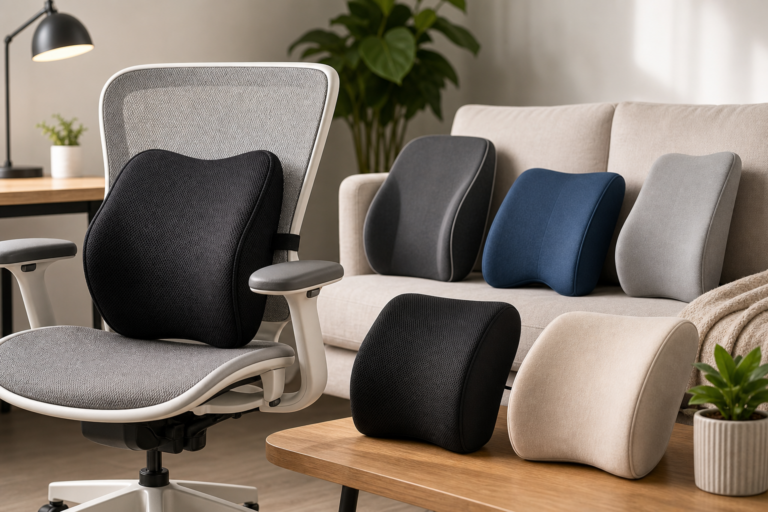
Adjust the lumbar support — either a built-in curve or a separate lumbar cushion — so it sits in the natural inward curve of your lower back, typically just above your belt line. OSHA guidelines specify that a chair’s backrest should allow you to recline at least 15 degrees from vertical, which periodically offloads the spine and reduces disc pressure during long working sessions.
Armrests
Set armrests so your upper arms hang naturally at your sides and your shoulders are completely relaxed — not shrugged upward. The armrest should support your forearm lightly; if it forces your shoulder up even a few millimetres, lower it. If armrests get in the way of pulling close to the desk, it is often better to remove or fold them down entirely.
Step 2 — Set Your Desk and Keyboard Height
Once your chair is dialled in, the keyboard and mouse surface should sit at or very slightly below your resting elbow height. When you rest your hands on the keyboard, your elbows should be bent between 90 and 100 degrees and your wrists should be straight and neutral — not arched upward or bent downward. Bent wrists, even a few degrees, sustained for hours at a time, are a primary driver of repetitive strain injuries.
Humanscale ergonomists point out that the standard office desk height of around 29.5 inches (75 cm) is actually too high for most seated people. If your desk is fixed and not height-adjustable, a keyboard tray mounted underneath can bring the typing surface down to the correct level without the cost of a new desk. Position the keyboard roughly 10–15 cm back from the front edge of the desk so your forearms have a resting surface and aren’t floating unsupported.
Keep the mouse on the same surface as the keyboard, as close to it as possible. Reaching out to the side repeatedly forces the shoulder out of its neutral position and, over time, leads to tension in the neck and upper back.
Step 3 — Position Your Monitor Correctly
Monitor placement errors are responsible for more neck problems than almost any other element of the workstation. Two measurements govern it: height and distance.
Monitor Height
The top edge of the screen should be at or very slightly below your natural eye level when you sit upright. According to OSHA guidance, the centre of the monitor should sit roughly 15 to 20 degrees below your horizontal eye line. A practical test: close your eyes, sit in your normal upright posture, and open them. Your gaze should land naturally on the upper third of the screen. If you’re staring at the bottom half, the monitor is too low; if you’re looking up, it is too high.
Placing a monitor on top of a computer tower or a pile of books often raises it too far, causing you to extend the neck backward — just as damaging as craning it forward. Use a monitor arm or a purpose-built riser for precise, stable adjustment.
Monitor Distance
OSHA recommends positioning the screen between 20 and 40 inches (50–100 cm) from your eyes, with most experts settling on 20–30 inches as optimal for standard monitors. A simple starting point: extend your arm toward the screen — the tips of your fingers should just reach or lightly touch the surface. If you consistently find yourself leaning in to read text, increase font size rather than moving the monitor closer.
Tilt and Glare
Tilt the screen 10–20 degrees away from you (top tilted slightly backward) so the display stays perpendicular to your line of sight. Position the monitor perpendicular to any windows rather than directly in front of or behind them; this prevents both direct glare on the screen and disruptive backlight behind it. Matte screen filters can help in unavoidably bright environments.
Step 4 — Laptops and Dual-Monitor Setups
A laptop used directly on a desk is ergonomically problematic: when the screen is at the right eye level, the keyboard is too high; when the keyboard is at the right hand level, the screen is too low. The fix is straightforward — raise the laptop on a stand to bring the screen to eye level, then connect an external keyboard and mouse. This single change eliminates the forced hunched-over posture that characterises most laptop users.
For dual monitors, position the primary screen directly in front of you and the secondary screen at the same height immediately beside it. If you use both screens equally, centre yourself between them. Avoid angling a secondary monitor so far to the side that you must turn your head repeatedly — a 35-degree lateral limit from centre is the maximum recommended by OSHA guidelines.
Step 5 — Lighting and the Rest of the Space
Overhead lighting that creates a bright patch on your screen forces your eyes to work harder, increasing fatigue. Supplement with a controllable desk lamp positioned on the side opposite your writing hand to illuminate documents without casting shadows across the keyboard. Keep frequently used items — phone, notepad, reference documents — within easy arm’s reach so you aren’t twisting or leaning repeatedly throughout the day.
The Role of Movement
Even a perfectly configured ergonomic desk cannot fully compensate for sitting in one position for hours without a break. Humanscale recommends a rhythm of roughly 16 minutes sitting, 8 minutes standing, and 2 minutes of light movement for every half-hour. At a minimum, aim for two to three short micro-breaks per hour — stand up, roll your shoulders back, and look at something at least 20 feet away for 20 seconds to reset both your muscles and your eyes. If you have a height-adjustable desk, use it: alternating between seated and standing postures across the day meaningfully reduces low-back load.
FAQ
How do I know if my chair height is correct?
When seated normally, your feet should rest flat on the floor without you having to stretch or tip-toe, and there should be a very slight gap between the back of your knees and the front edge of the seat cushion. Your thighs should be approximately parallel to the ground, with your knees at roughly a right angle.
My desk is not adjustable — what can I do?
Raise your chair to bring your elbows to keyboard level, then use a footrest if your feet no longer reach the floor. A keyboard tray installed under the desk surface is a low-cost solution that brings the typing surface down without needing a new desk. Monitor arms can independently adjust screen height regardless of desk height.
How far should my monitor be from my eyes?
OSHA guidelines recommend a viewing distance of 20 to 40 inches (50–100 cm) from your eyes to the front surface of the screen. Most people find 20–30 inches comfortable for a standard 24–27-inch monitor. If you need to squint or lean in to read, increase the display’s font size rather than moving the screen closer.
Do I need a wrist rest?
Wrist rests are most useful during pauses in typing, not while actively typing. Using them as a support while your fingers are moving can actually bend the wrist upward, increasing pressure on the carpal tunnel. If you use one, use it as a resting pad between bursts of typing, and keep your wrists straight and floating while your fingers are on the keys.
Sources
- osha.gov
- osha.gov
- osha.gov
- apac.humanscale.com
- oakywood.shop
- ergotron.com
- movementmedchicago.com
- contourdesign.com